System Settings Maintenance
Human Resources > State Requirements > NY > System Settings Maintenance
 Initial Setup Requirements
Permissions
Initial Setup Requirements
Permissions
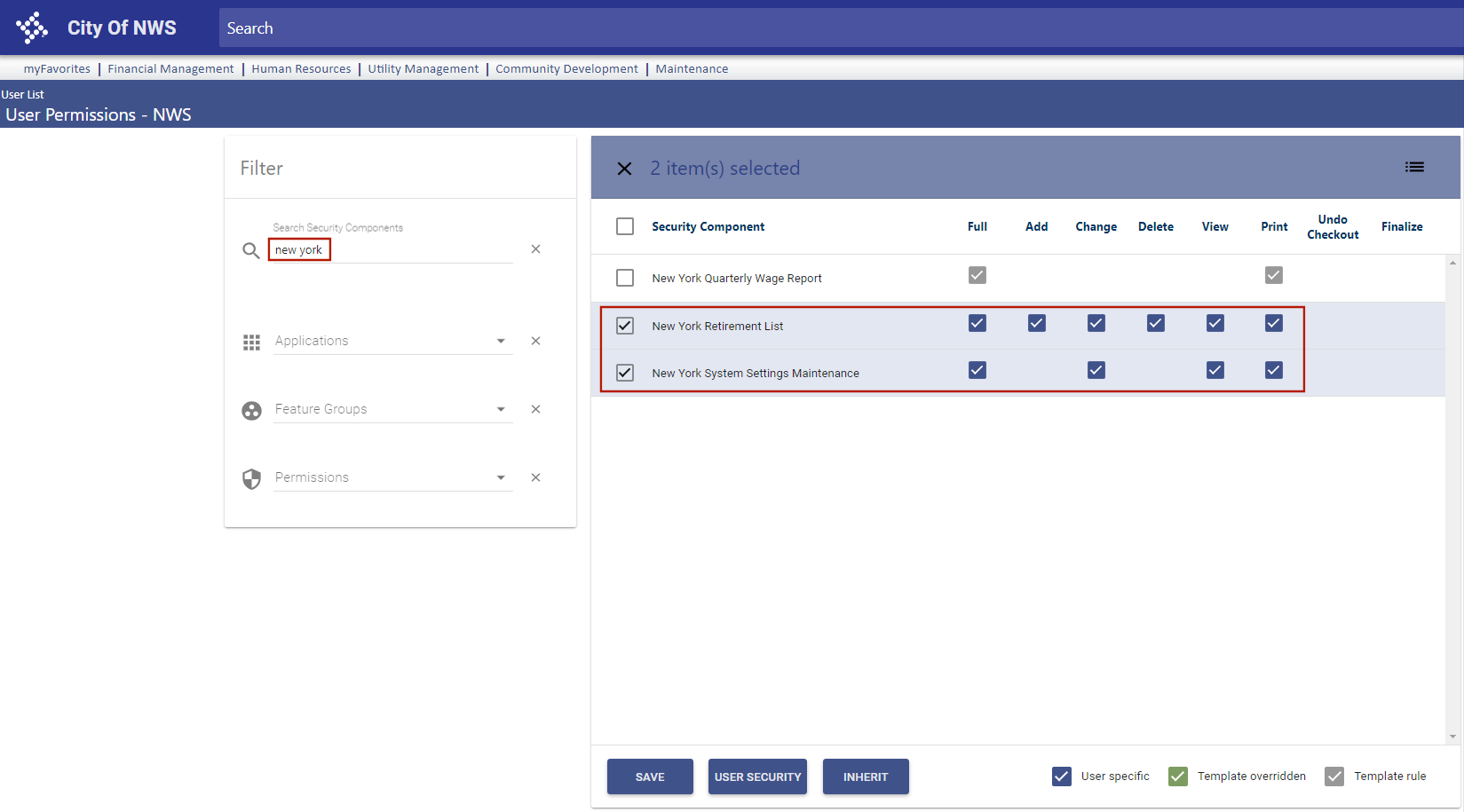
Users need permission to two security components, New York Retirement List and New York System Settings Maintenance:
- Navigate to Maintenance > new world ERP Suite > Security > Users. The User List page opens.
- Use the filter in the User Name column to search for the user.
- Select the user’s row.
- Click Permissions. The User Permissions page opens, containing a grid of security components and a filter panel.
-
In the Search Security Components filter, type New York (the entry is not case sensitive). The grid reloads to contain the New York security components:
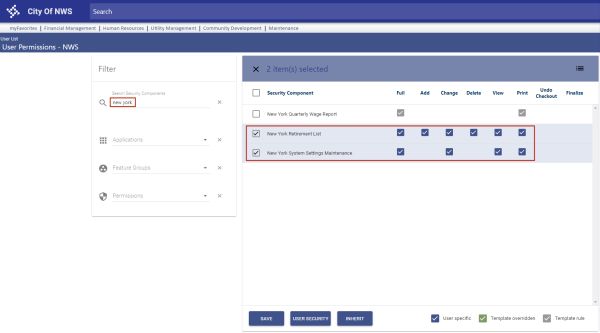
- Select Full permissions for the New York Retirement List component.
- Select Full permissions for the New York System Settings Maintenance component.
- Click Save.
- For the permissions to take effect, the user must log off and log back onto the system.
 Validation Sets and User-Defined Fields (UDFs)
The following validation sets and user-defined fields (UDFs) required for NYSLRS Enhanced Reporting come preloaded:
| Validation Sets | |
|---|---|
| Set Number | Name |
| 616 | New York NYSLRS Job Code |
| 617 | New York NYSLRS Employee Class |
| 627 | New York Deferred Comp Type |
| 628 | New York Deferred Comp IRS Code |
| 629 | New York Deferred Comp Money Source |
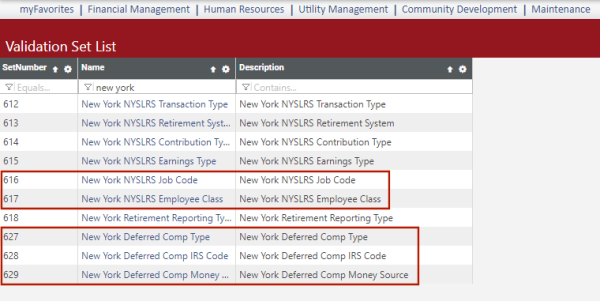
Note: Validation sets already have been set up for you at Maintenance > New World ERP Suite > System > Validation Sets > Validation Set List.
| UDFs | ||
|---|---|---|
| Record Type | Name | Data Type |
| Employee Employment |
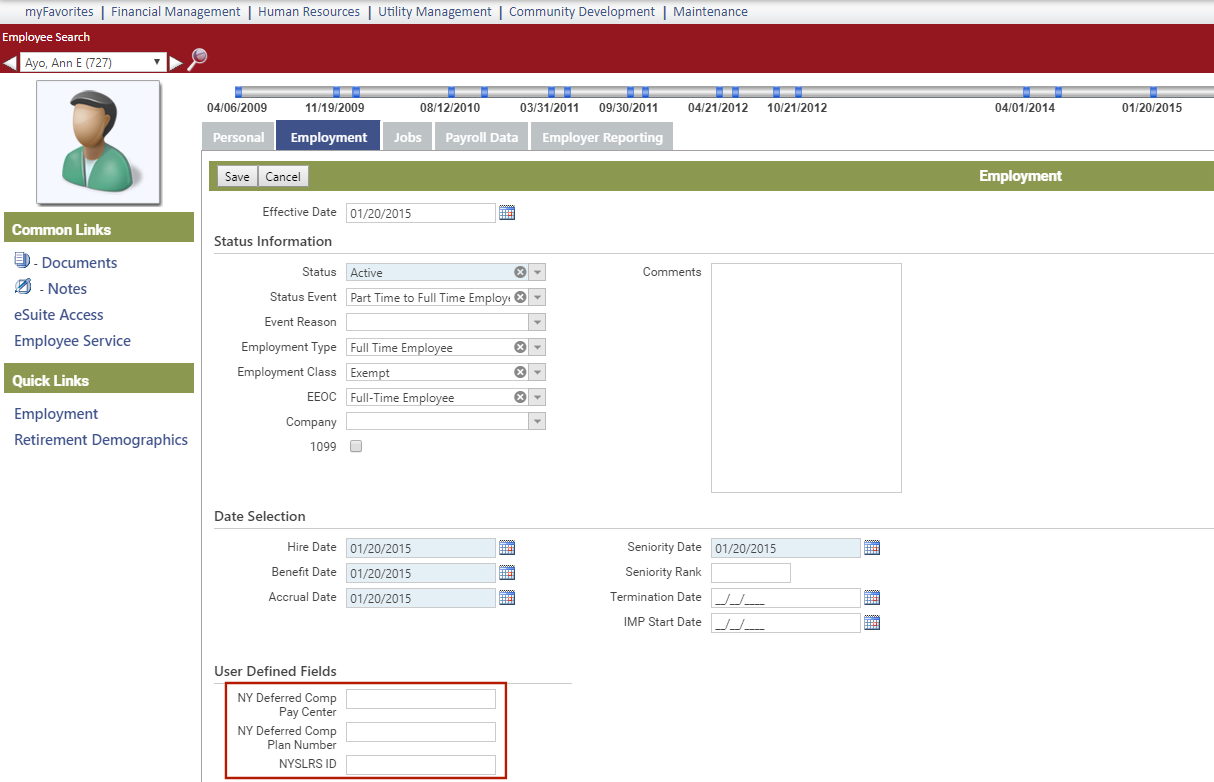
NYSLRS ID (Values provided by state) |
Text |
| Employee Employment | NY Deferred Comp Pay Center | Text |
| Employee Employment | NY Deferred Comp Plan Number | Text |
| Employee Jobs | NYSLRS Employee Class | Validation Set |
| Employee Jobs |
NYSLRS Employment Instance (Values provided by state) |
Numeric |
| Employee Jobs | NYSLRS Job Code | Validation Set |
Employee Employment UDFs
Employee Jobs UDFs
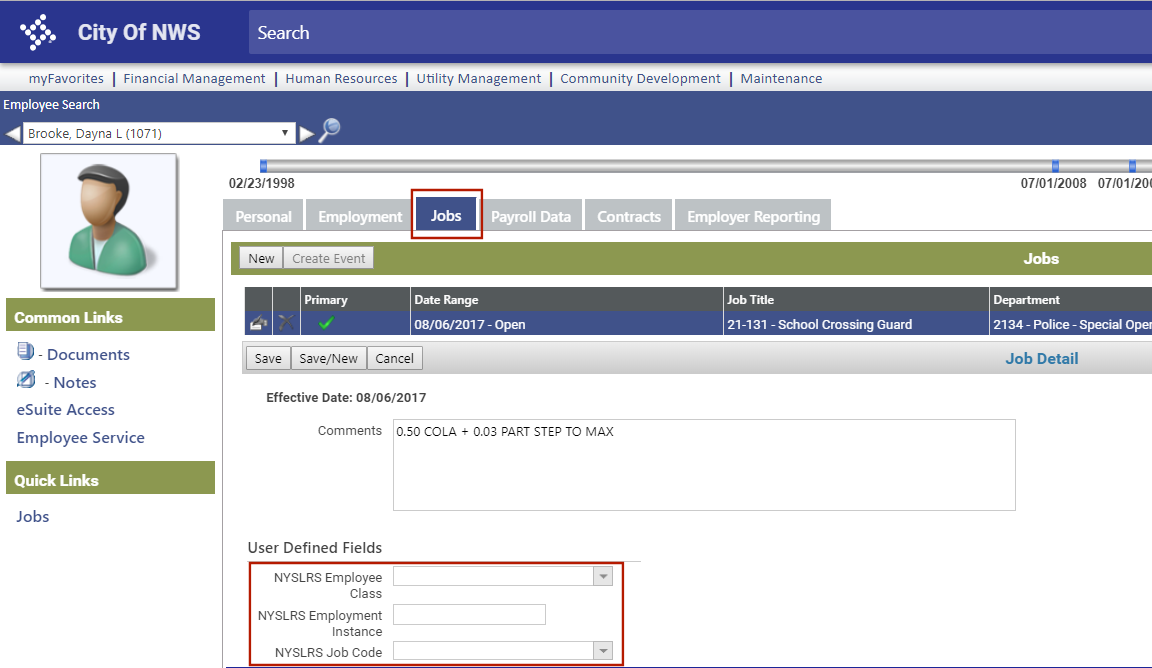
Note: To be included in the initial NYSLRS report and transmittal upload, an employee must have a selection in the NYSLRS Job Code UDF. Job codes are defined by the state of New York.
System Settings Maintenance
Before creating your state retirement data, you need to perform additional setup on the System Settings Maintenance page. This page includes a Retirement tab and a Deferred Compensation tab.
Retirement Tab
Use the Retirement tab to select a reporting type and location code, map employment statuses and job events to the appropriate NYSLRS statuses, map benefit and deduction codes to system IDs and map contribution type codes and hours codes to earnings type codes.
The Retirement tab contains four sub-tabs: General, Benefits, Deductions and Earnings.
General
This tab contains fields for selecting the reporting type and location code, a grid for mapping employment statuses and a grid for mapping job events:
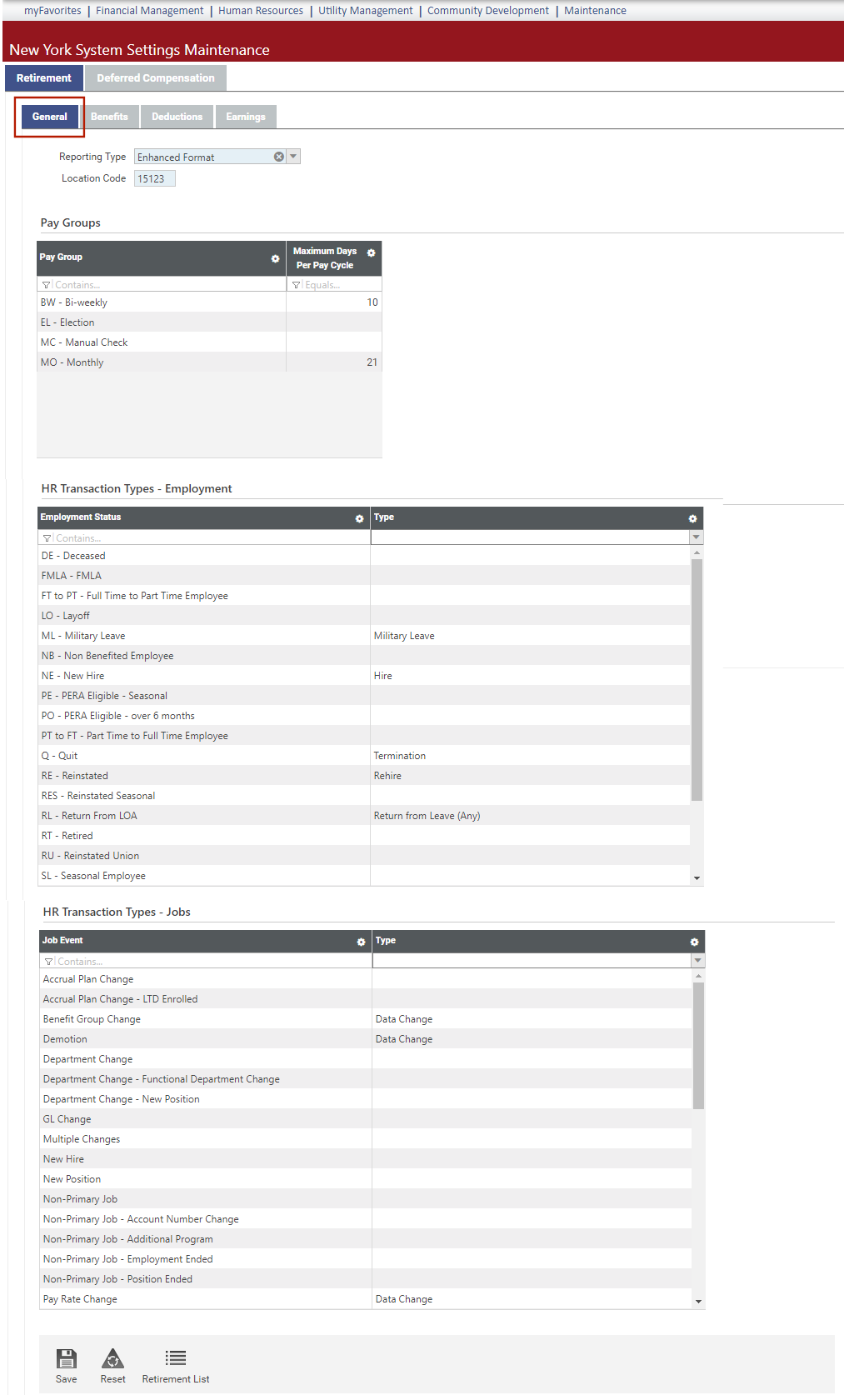
The Reporting Type drop-down contains two options, Enhanced Format and Legacy Format. The Enhanced Format is selected by default.
The Location Code is the header that appears on the top of every transmittal file.
Use the Pay Groups grid to set up the maximum number of credited days per pay cycle for each pay group, regardless of the number of hours worked.
To select the maximum days per pay cycle for a pay group, double-click in the Pay Group row to enable the Maximum Days Per Pay Cycle cell, type the number of days and click the Save button.
The credited days for a pay cycle will not exceed the number entered here.
In the Employment grid, statuses built in New World ERP appear in the left column. Cells in the right column are drop-downs containing NYLSRS statuses that come from validation set 612. If you report employment statuses, map the relevant statuses on the left to the NYLSRS statuses you report.
These selections update record 2 on the transmittal file.
In the Jobs grid, job events built in New World ERP appear in the left column. Cells in the right column are drop-downs containing NYLSRS statuses that come from validation set 612. If you report job events, map the relevant events on the left to the NYLSRS job events you report.
These selections update record 2 on the transmittal file.
Note: To be included in the initial NYSLRS report and transmittal upload, an employee must have at least one job event or one employment event that is mapped in System Settings Maintenance.
Benefits
On the Benefits tab, for contributions the employer makes on behalf of employees, map benefit codes in the left column of the grid to the appropriate System ID and contribution Type codes in the center and right columns, clicking the Save button after each selection.
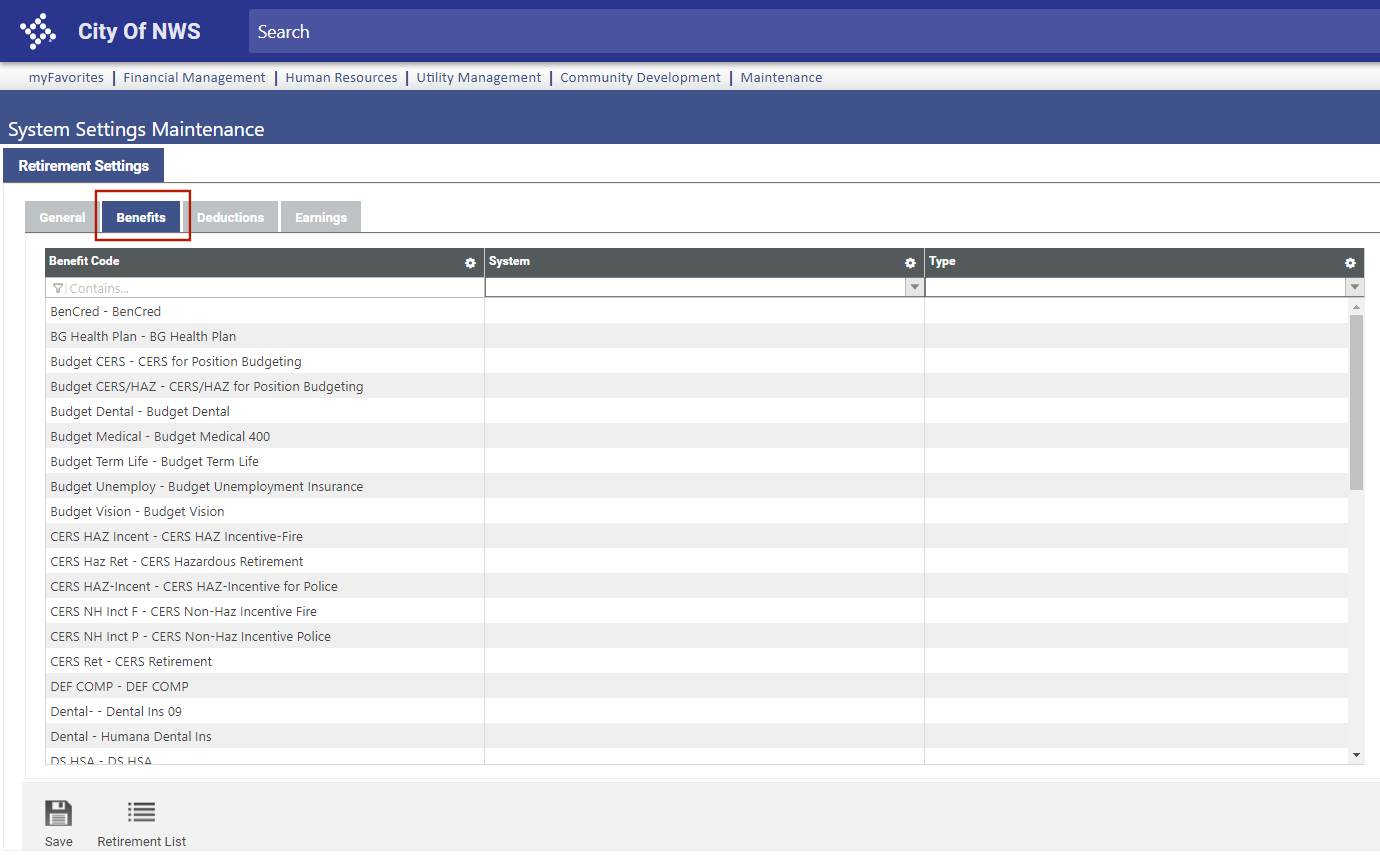
Anything mapped here and used in a payroll will be reported on record 3 (Contributions) of the transmittal file.
Deductions
On the Deductions tab, for employee contributions, map deduction codes in the left column of the grid to the appropriate System ID and contribution Type codes in the center and right columns, clicking the Save button after each selection.
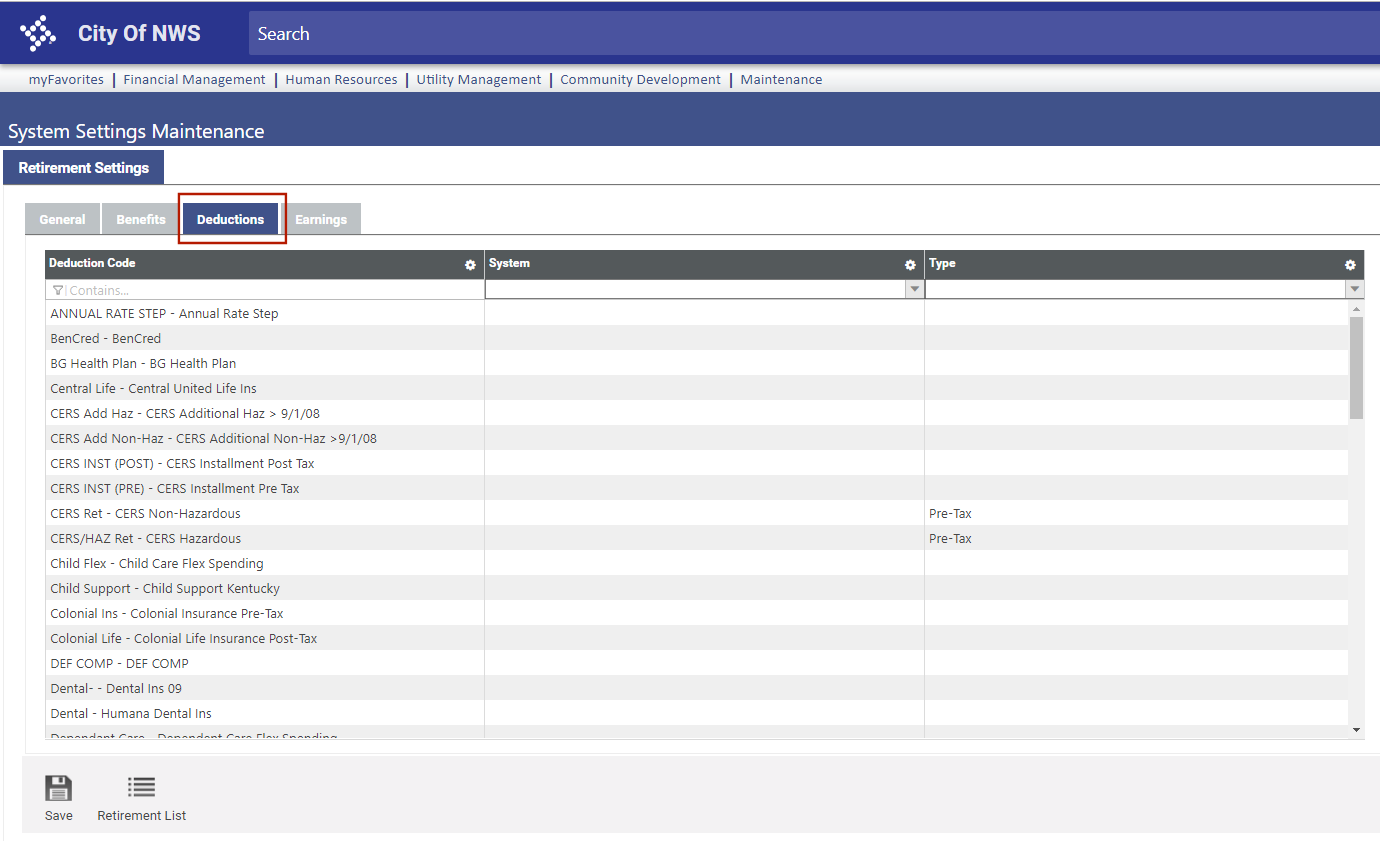
Anything mapped here and used in a payroll will be reported on record 3 (Contributions) of the transmittal file.
Earnings
The left column of the grid on the Earnings tab contains all active hours codes. Map hours codes to the appropriate earnings type codes in the right column, clicking the Save button after each selection. Anything mapped here and used in a payroll will be reported on record 4 (Earnings) of the transmittal file.
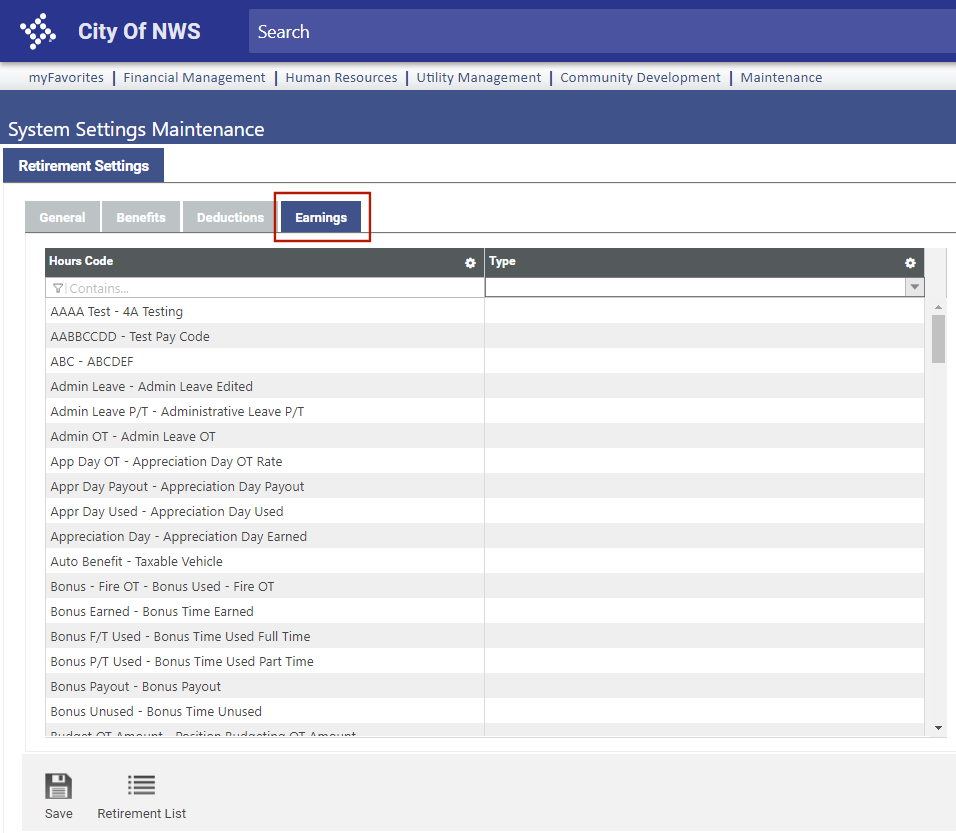
Note: To navigate between this page and the New York Retirement List page while performing setup and running reports, use the Retirement List button on this page and the Settings button on the New York Retirement List page.
Deferred Compensation Tab
Use the Deferred Compensation tab to set up deferred compensation reporting.
Initial Setup
To set up deductions as deferred comp loan payments, use the Loan Number field in the Deduction Detail section of Workforce Administration.
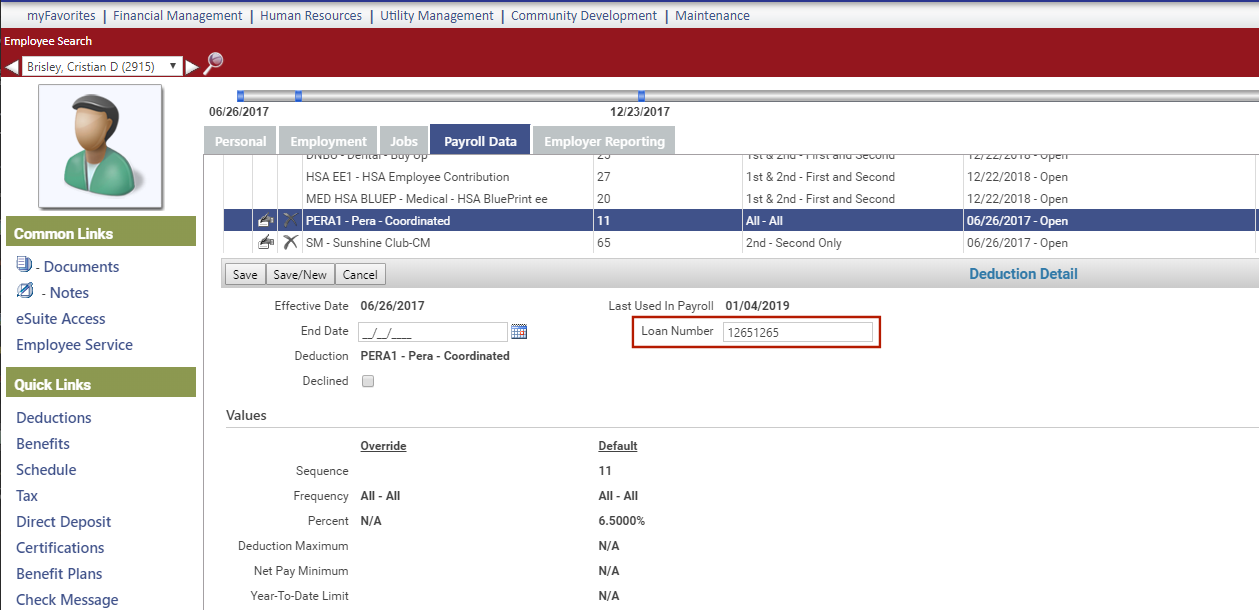
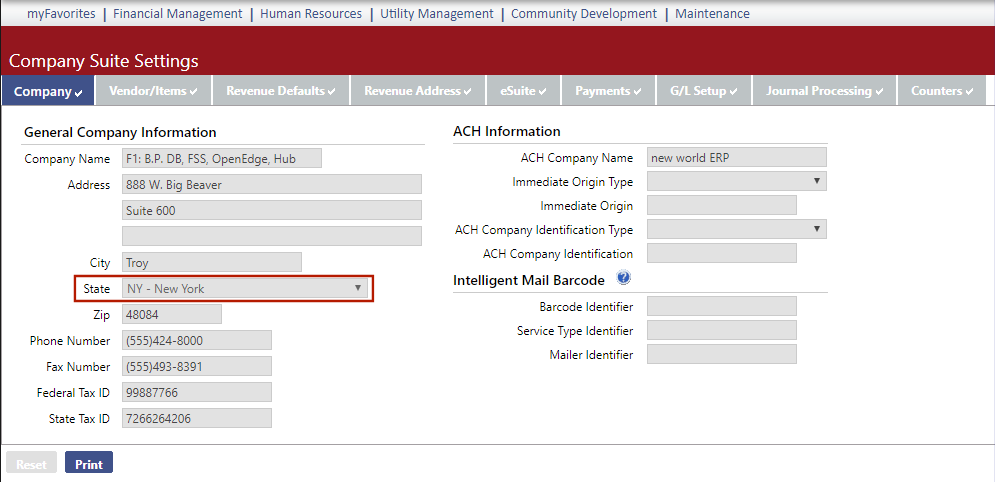
This field appears in Deduction Detail only when the State field in Company Suite Settings is set to NY.
If a deduction has a Loan Number on it, the amount of the deduction shows in the Loan Payment column of the New York Deferred Compensation file. If the Loan Number field is empty, the deduction amount shows in the Contribution column.
This new field allows multiple deductions to be set up for multiple loan numbers. Multiple loan numbers also may be set up through the Create Event function on a deduction.
Deferred Compensation
The Deferred Compensation tab on the New York System Settings Maintenance page contains three sub-tabs: General, Benefits and Deductions.
General
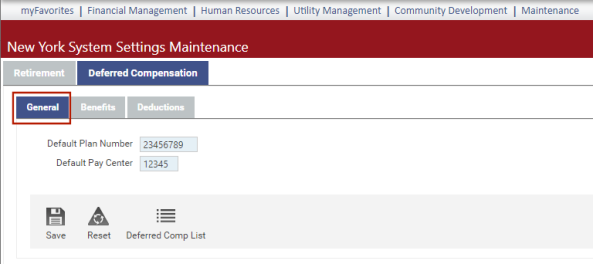
Default Plan Number and Default Pay Center are user-defined fields (UDFs) that appear on the Employment tab in Workforce Administration.
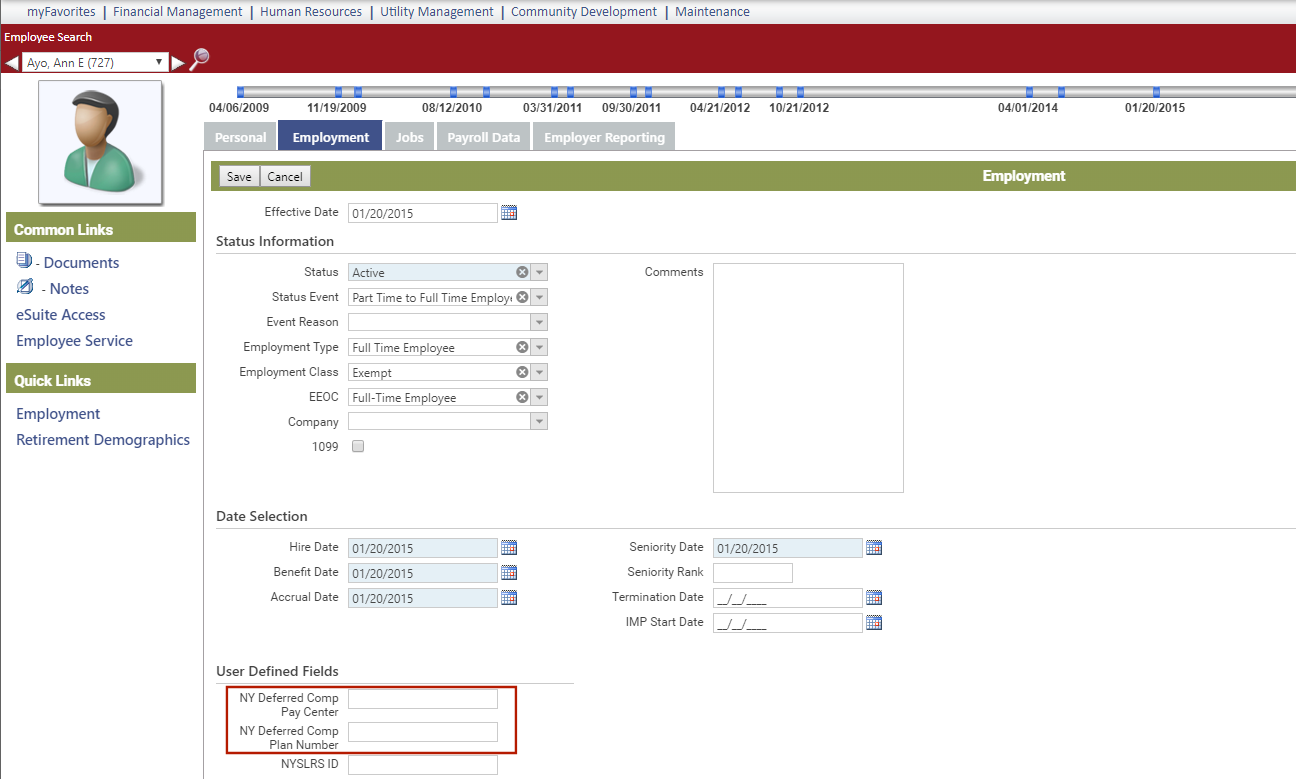
By default, deferred comp data is created for the plan number and pay center identified on the New York System Settings Maintenance page but will be overridden for any employee who has a different plan number or pay center identified in Workforce.
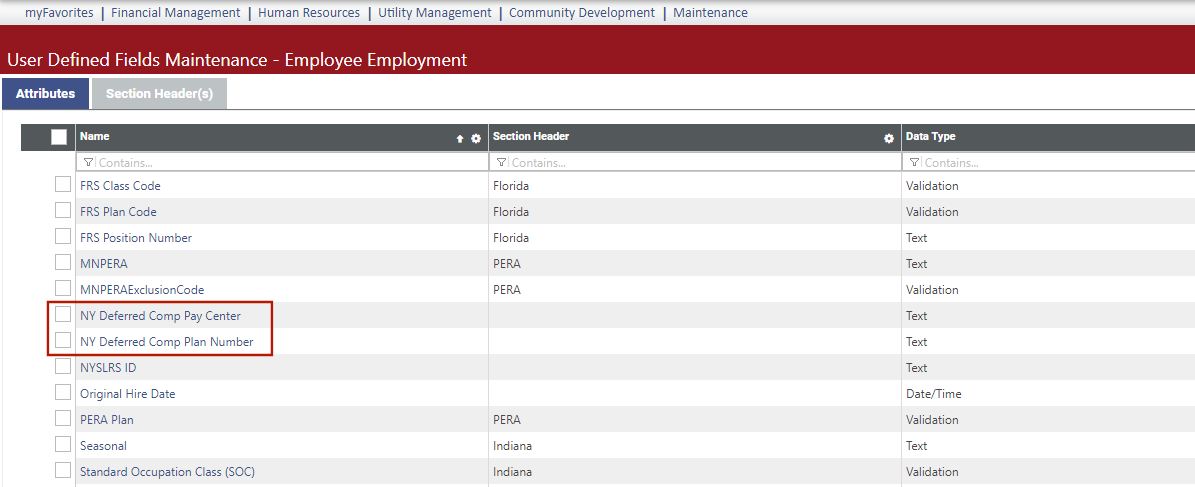
The Default Plan Number and Default Pay Center UDFs already have been set up for you on the User-Defined Fields Maintenance-Employee Employment page.
 Benefits and Deductions
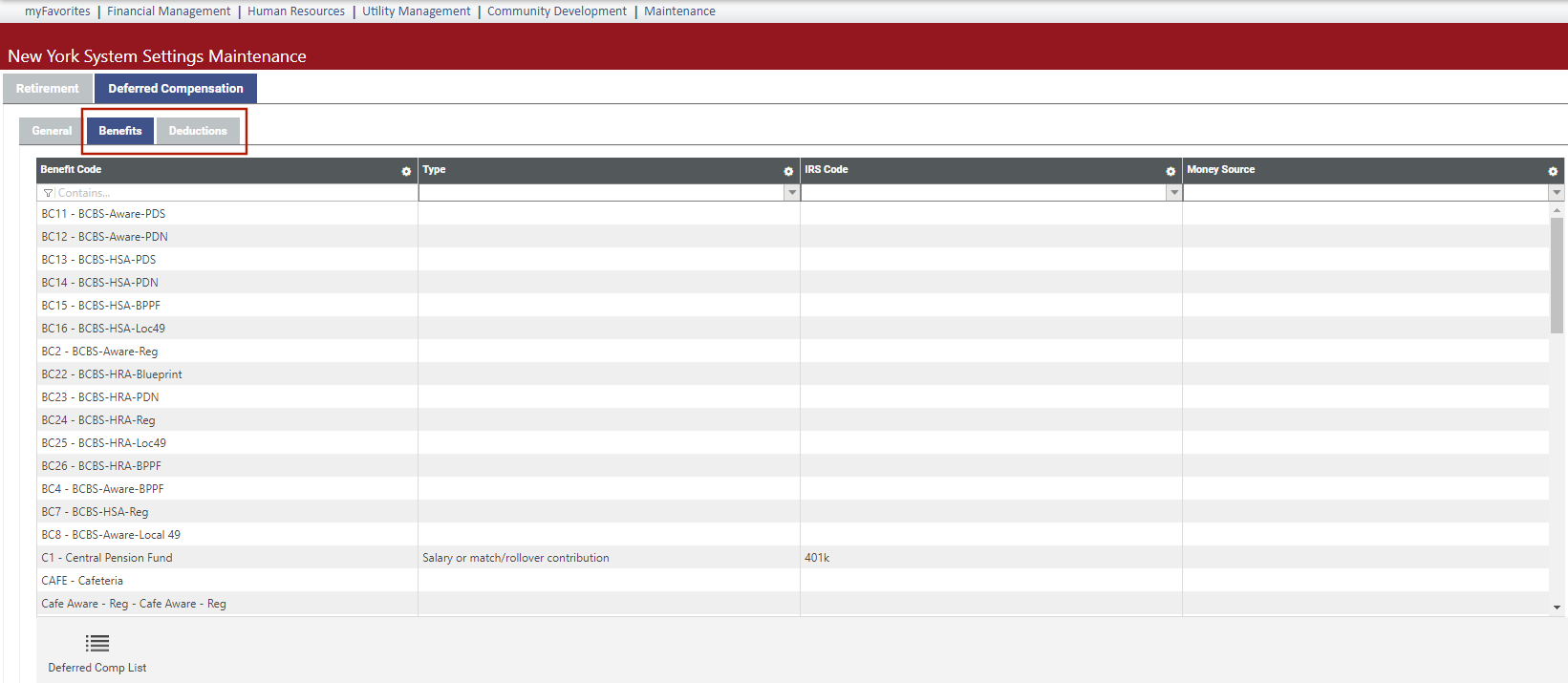
Use the Benefits and Deductions tabs to map benefit and deduction codes to the appropriate contribution type codes, IRS codes and money sources. Contribution types are regular contributions and loan repayments. Money sources are available for non-loans only. Money source descriptions appear on the drop-down; their corresponding codes appear in the transmittal file.
To save each selection, click outside the cell, or click the Save button.
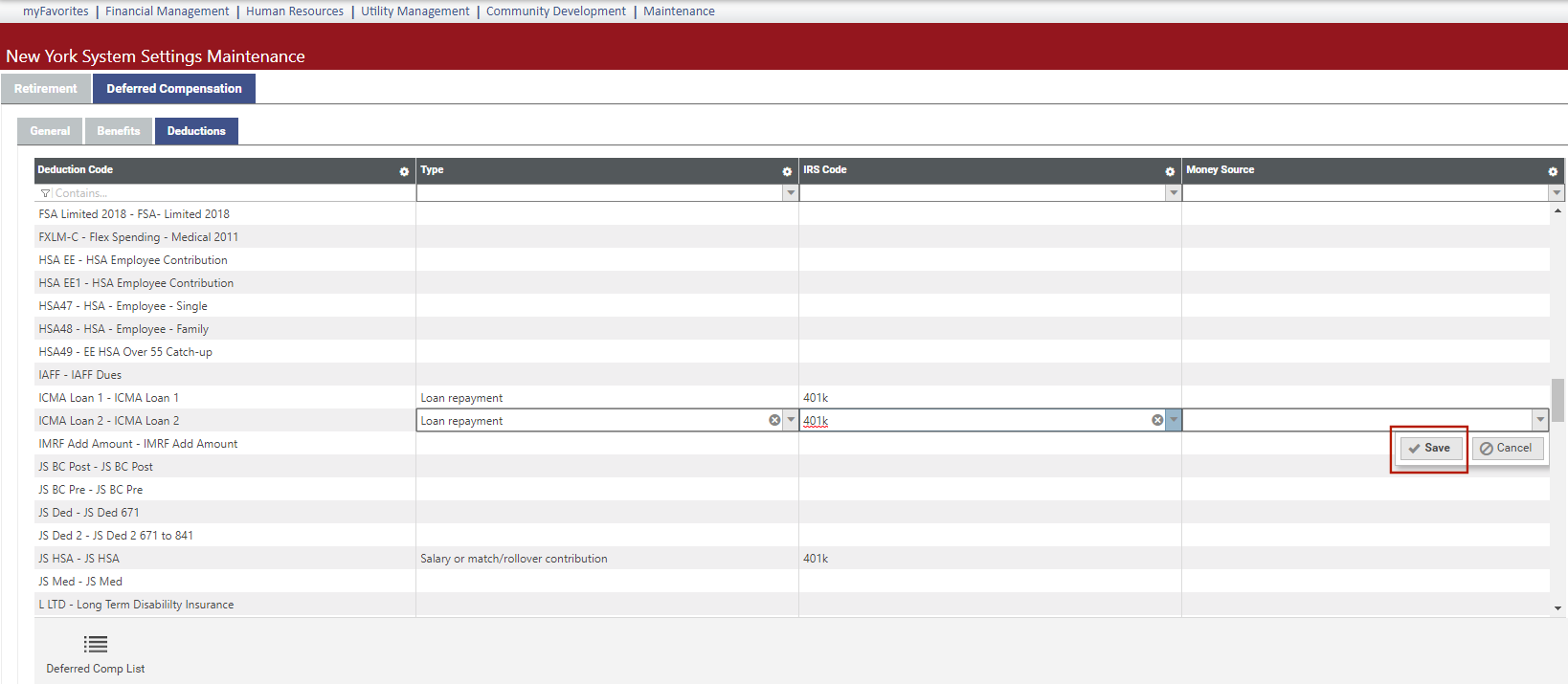
If you select a code by mistake, click the X on the right side of the cell to remove it from the cell.
Note: To navigate between this page and the New York Retirement List page while performing setup and running reports, use the Retirement List button on this page and the Settings button on the New York Retirement List page.
Quarterly Wage Tab
Use the Quarterly Wage tab to set up the New York Quarterly Tax and Wage Report, entering general report information, mapping hours codes to unemployment insurance types and mapping tax codes to tax types.
The Quarterly Wage tab contains three sub-tabs: General, Hours Codes, and Tax Codes.
General
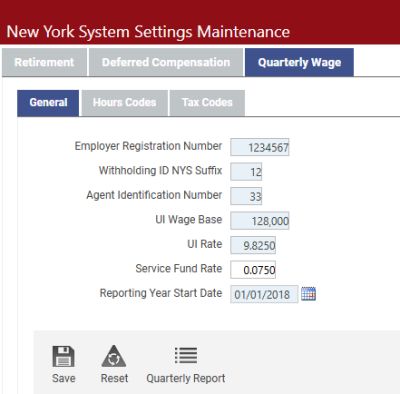
This tab contains general fields: The first three, Employer Registration Number, Withholding ID NYS Suffix and Agent Identification Number, only need to be entered once.
The UI Wage Base, UI Rate, Service Fund Rate and Reporting Year Start Date need to be updated once per year, usually in January, when the state increases rates.
Hours Codes
The Hours Codes tab is for the unemployment insurance (UI) information part of the report:
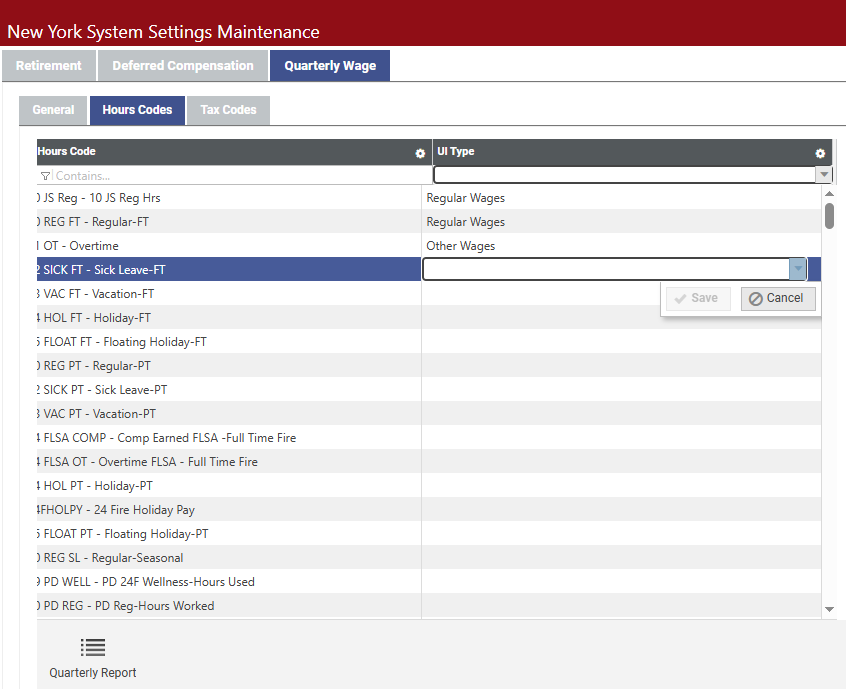
Map the relevant hours codes in the left column to the appropriate UI types in the right column. Double-click a cell in the right column to select the UI type, Regular Wages or Other Wages, from the dropdown, clicking Save after each selection.
Tax Codes
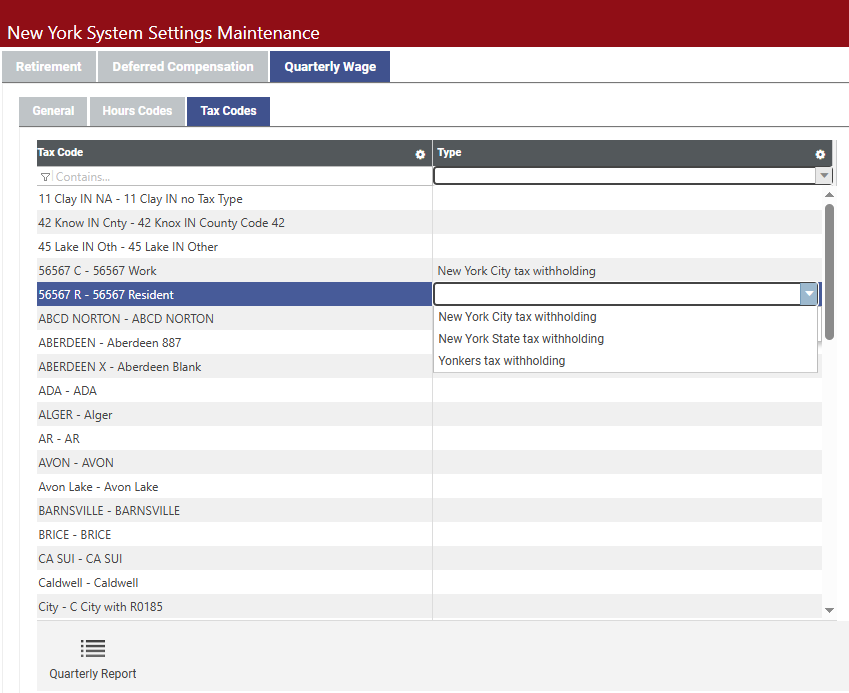
On the Tax Codes tab, map the relevant tax codes in the left column to the appropriate tax types in the right column. The state of New York requires each tax code to be designated as one of three types: New York City tax withholding,New York State tax withholding or Yonkers tax withholding. Double-click a cell in the right column to select the tax type from the dropdown, clicking Save after each selection.
Note: To navigate between this page and the New York Retirement List page while performing setup and running reports, use the Retirement List button on this page and the Settings button on the New York Retirement List page.